
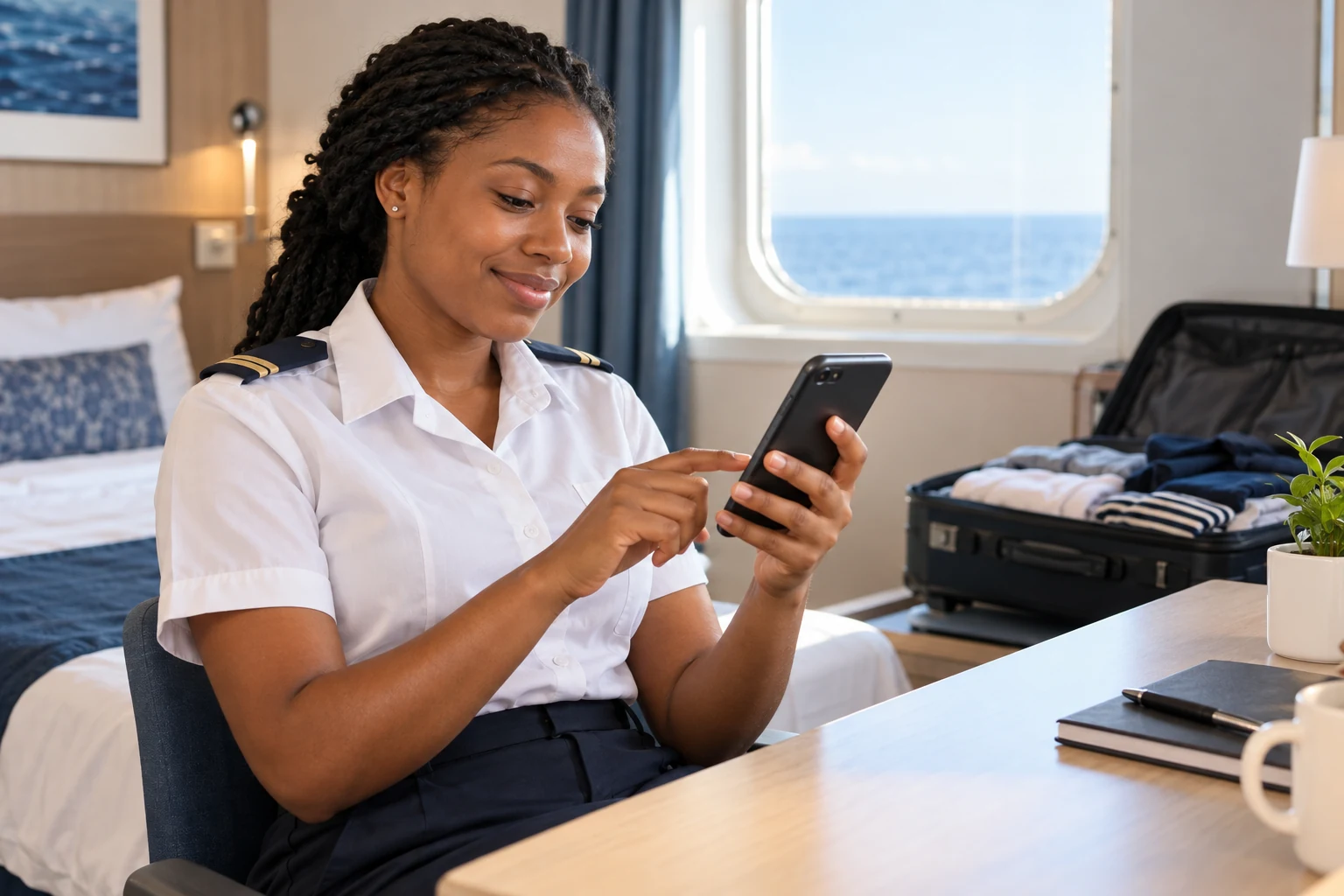
Black cruise crew member reviewing onboarding documents on a tablet aboard a ship.
Crew Life at Sea
Menu

Applicant portal guidance

Use the official portal.Keep your sign-in private.

MyRCL is an external Royal Caribbean Group portal. Use the official login and follow the verified invitation or recruiter instructions; never share a password or one-time code.

External portal · sign in only at the official address

Secure portal hand-off

Your login belongs on the official site.

This preview does not collect MyRCL credentials, passwords, one-time codes or application documents. Confirm the address in your browser before entering any information.

If you are asked to upload completion evidence through a C-TRAC workflow, follow the invitation and instructions from your authorised recruiter. Check the exact checklist and deadline for your application.

Do not send passwords, verification codes, passport scans or bank details through chat or to an unverified email. Verify unexpected instructions through a known official channel.

Portal access

If a step does not work

Use a safe sequence and keep a short record of the problem without exposing account secrets. Use this section to prepare questions and organise evidence, then confirm details against the current vacancy or official instructions. Save written answers and update your notes if the employer, schedule, port or document requirement changes.

A Black cruise crew member checks onboarding progress on her phone before joining a ship.
Crew portal

Use the employer’s verified onboarding channel.

A company portal can provide joining tasks, notices and document requests. Check the address with your employer before signing in, and use their support contact if a request looks unexpected.

  • Use a unique password and keep one-time codes private.
  • Upload documents only to the confirmed portal.
  • Review progress and deadlines regularly.

Verify the destination

Open the official login or a verified employer invitation and check the browser address. Use a verified contact or portal, confirm who is responsible and what information is needed, and keep a record of the reply. Never send passwords, verification codes, passport details or original records through an unverified channel.


Black onboarding adviser helping a candidate review a document checklist

Use your invitation

Follow the current email instructions for your application; check that the email matches your records. Use a verified contact or portal, confirm who is responsible and what information is needed, and keep a record of the reply. Never send passwords, verification codes, passport details or original records through an unverified channel.

Black cruise crew applicant receiving onboarding guidance in a maritime library

Ask safely for help

Tell your recruiter which step failed. Do not include your password or one-time code. Use a verified contact or portal, confirm who is responsible and what information is needed, and keep a record of the reply. Never send passwords, verification codes, passport details or original records through an unverified channel.

Practical next steps

Prepare before you apply

Use the written vacancy and instructions from the relevant employer or authority to confirm details for your case. Prepare a role-specific application file with a concise CV, contactable references and clear copies of relevant qualifications when requested. Check spelling, contact details, dates and certificate expiry, then follow the employer’s file format and keep a record of the submission date and response route.

01

Verify the address

Use https://myrclhome.com/#/login or a link from a verified invitation. Use a verified contact or portal, confirm who is responsible and what information is needed, and keep a record of the reply. Never send passwords, verification codes, passport details or original records through an unverified channel.

02

Check the application

Make sure the name and job reference in your instructions match your records. Use a verified contact or portal, confirm who is responsible and what information is needed, and keep a record of the reply. Never send passwords, verification codes, passport details or original records through an unverified channel.

03

Upload only requested files

Use the portal’s secure upload for the named document and keep a private copy. Use a verified contact or portal, confirm who is responsible and what information is needed, and keep a record of the reply. Never send passwords, verification codes, passport details or original records through an unverified channel.

04

Report errors without secrets

Share the error, date and step with your recruiter, never authentication codes. Use a verified contact or portal, confirm who is responsible and what information is needed, and keep a record of the reply. Never send passwords, verification codes, passport details or original records through an unverified channel.

Questions to check

Before you commit

Use current written instructions. Requirements can differ by employer, role, nationality, vessel and itinerary. Airline rules and shipboard joining instructions are separate. Check baggage, medication and battery restrictions with the carrier, then confirm the ship’s uniform, luggage and transfer requirements with the employer. Save your itinerary and a verified contact number offline.

Can I reset my password here?

No. Use the official portal’s recovery process or support contact in your verified invitation.

Is MyRCL the same as applying for a job?

No. Apply through the official careers or recruiter channel; portal access may be a later step.

Should I share a one-time code?

No. Enter it only on the verified site when you initiated sign-in.

What if an invitation is unexpected?

Do not enter details until you verify it with your known recruiter through official contact details.

Where can I ask about an application?

Use the Crew Life at Sea contact page or your authorised recruiter’s verified details.

Useful details

A safer portal checklist

Treat account access and document uploads as part of your application file. Use the live listing to decide what to emphasise, while keeping every claim accurate. For each required skill, note where and when you used it, what you personally handled and which evidence supports it; ask the recruiter before treating related experience as an equivalent qualification.

Open the invitation carefully

Use the portal address supplied through your verified hiring channel. Check the domain before entering a password, and do not use an unexpected sign-in link from an unverified message. Use a verified contact or portal, confirm who is responsible and what information is needed, and keep a record of the reply. Never send passwords, verification codes, passport details or original records through an unverified channel.

Keep your account private

Use a unique password, do not share verification codes, and sign out on shared devices. Never send passwords or one-time codes to a recruiter or support contact. Use a verified contact or portal, confirm who is responsible and what information is needed, and keep a record of the reply. Never send passwords, verification codes, passport details or original records through an unverified channel.

Track what you submit

Keep a private note of requested documents, upload dates and confirmation messages. If something fails, record the error and contact official support without attaching passwords or full payment details. Use a verified contact or portal, confirm who is responsible and what information is needed, and keep a record of the reply. Never send passwords, verification codes, passport details or original records through an unverified channel.

Put the information to work

Protect your account while completing the official onboarding steps.

MyRCL and CrewPass are separate systems with separate invitations. Use the destination in the employer’s verified instructions, and contact the appropriate support team if an account or task appears to be missing.

Action 01

Open the correct invitation

Check the sender and destination before entering credentials. If an invitation has expired, request a replacement using a known employer contact rather than following an unfamiliar link in a forwarded message.

Action 02

Complete tasks in order

Read each field instruction, upload the requested file and check the confirmation state before leaving the page. Keep a private list of completed tasks and dates, but do not save passwords or sensitive numbers in an unsecured note.

Action 03

Report errors without exposing records

Describe the page, error message, device and time to support. Do not email a password, one-time code or full passport image unless an authorised secure process specifically asks for it.

More detail for your next step

Resolve portal issues without risking your account.

An onboarding portal can hold personal employment documents. Use the official invitation and the employer’s support route, and keep sensitive account details private while you complete each task.

Practical check 01

Recover access through a verified route

If a link expires or your account locks, use the portal’s official recovery option or contact the employer through a known address. Ask for a fresh invitation rather than changing the email or account details on your own.

Practical check 02

Check whether a document needs action

A file may be uploaded but still awaiting review. Read any status note, identify the requested correction and replace only the item the portal asks you to update. Keep the confirmation and date for your records.

Practical check 03

Use a secure device and connection

Sign out on shared devices, avoid public computers for passport or medical uploads and do not forward authentication codes. If you suspect the wrong file was submitted, contact the verified onboarding team promptly.

Continue with a role-specific guide

Check the vacancy and prepare your next step.

Compare your experience with the current requirements before applying.

Continue ↗